
FarmMind Tutorials
Adding Costs
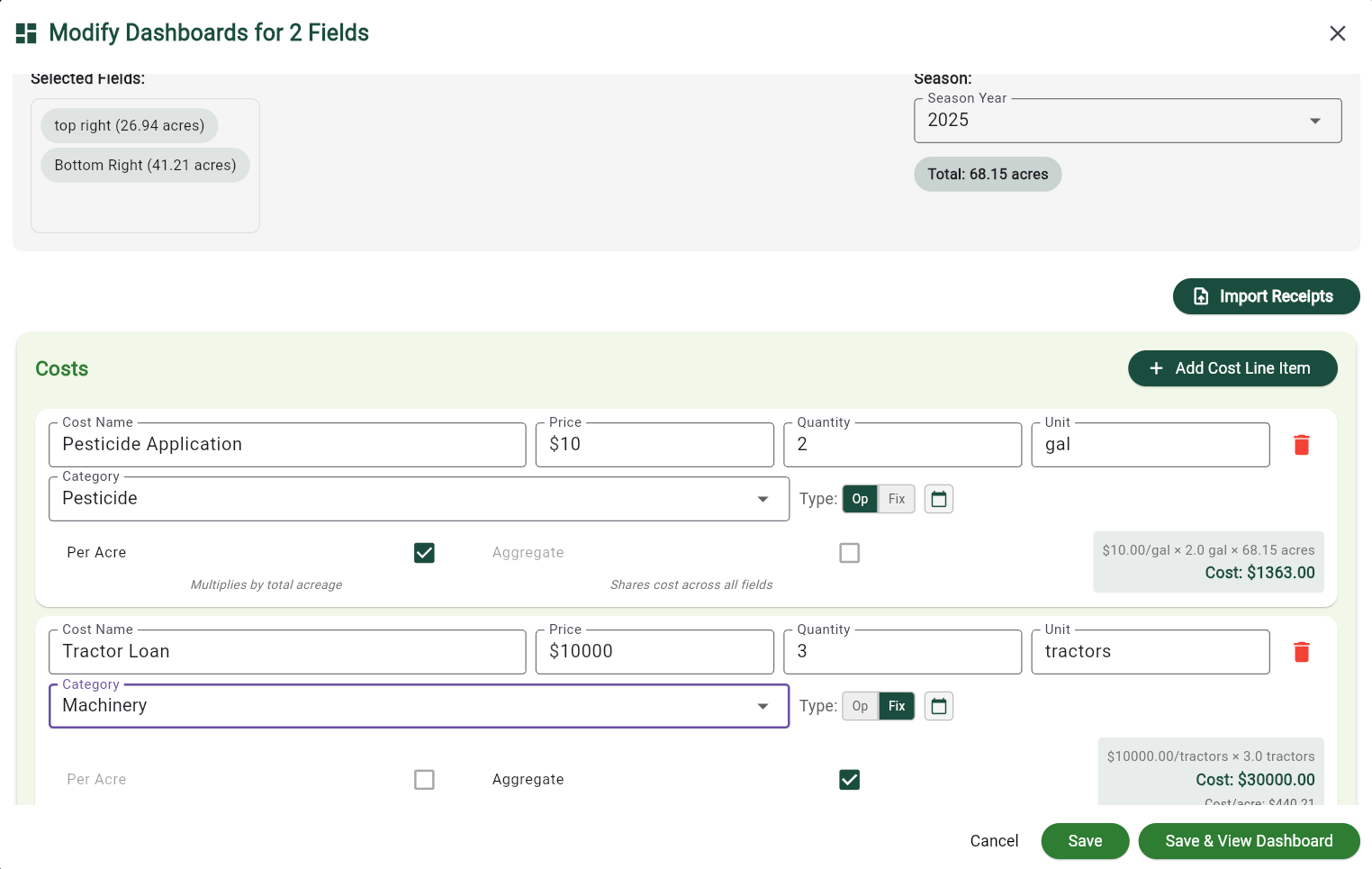
Costs are an incredibly important part of FarmMind's financial analysis engine. In order to add costs to a field, click on a field or select multiple and select 'Add Costs/Yield'. This will pop up a dialog that will allow you to put in each cost line item that you would like to apply to these fields, as well as allowing you to input a shared actual and target yield/acre and price/yield unit for the selected fields.
You can also add costs in the field balance sheet in a season dashboard.
Adding Costs from Maps
Click on a field and select 'Add Cost/Yield data'. If you want to add costs to multiple fields, you can select any number of fields using the 'Select Mode' tool at the top and press the 'Add Cost/Yield data' on the top left. A dialog will then pop up with a couple of different items.
Cost Line Items
Each cost has a cost name, price, quantity, unit, category, and type (operating or fixed), along with a date recorded. Each cost can be applied to a field per-acre (which multiplies the cost by the total acreage of all fields), or as an Aggregate cost applied to all fields at once.
Aggregate costs are 'shared' costs that are applied to multiple fields, such as a tractor cost that's meant for 4 fields, or a lump purchase of Urea for a farm. If a cost is NOT an aggregate cost, it will be multiplied by the number of fields for quick and easy calculation. However most of the time, when applying a single cost to multiple fields, it should be marked as an aggregate cost (and is automatically inferred when importing receipts).
Inputting Yield
Once you have gone over your costs, you can scroll down and input your target and actual yield for these fields, as well as a price/unit that is used for revenue calculations. If you do not put in a price, a price will be inferred based on public NASS data.
When you are finished, you can click Save or Save and View Dashboard to go to the season dashboard if you selected one field or a field comparison dashboard if you selected multiple fields.
Quick Import Option
If you would not like to manually input all of this data, you can import your receipts by pressing the 'import' button above the costs.