
FarmMind Tutorials
Folder Trees
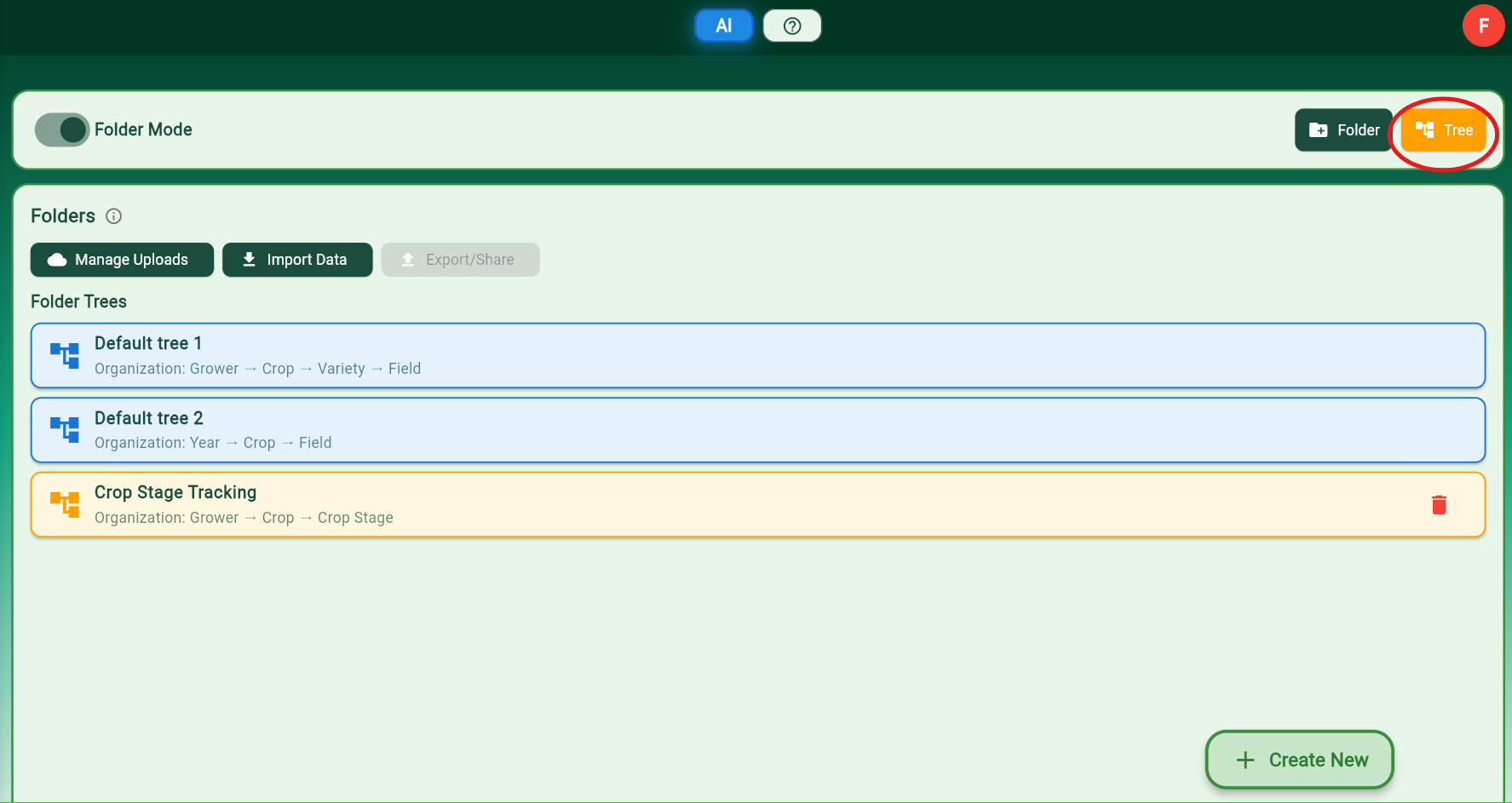
FarmMind's Folder Trees allow you to organize your documents however you'd like. Folder trees use tag types to organize your folders, so you never have to manually create a folder again if tags on your fields exist. We created 2 default trees that you can use to get familiar with how folder trees work.
Creating a Folder Tree
To create a folder tree, press the yellow 'Tree' button at the top right. A dialog will pop up where you can create the organization of your folder tree. You can organize your tree based on:
- Year - Organize documents by season
- Month - Group by months within a year
- Tag Type - Organize by grower, farm, soil type, or any custom tag
- Crop - Group documents by crop type
When you're finished, name your folder tree and then your tree will automatically contain a folder organization!
Navigating Folder Trees
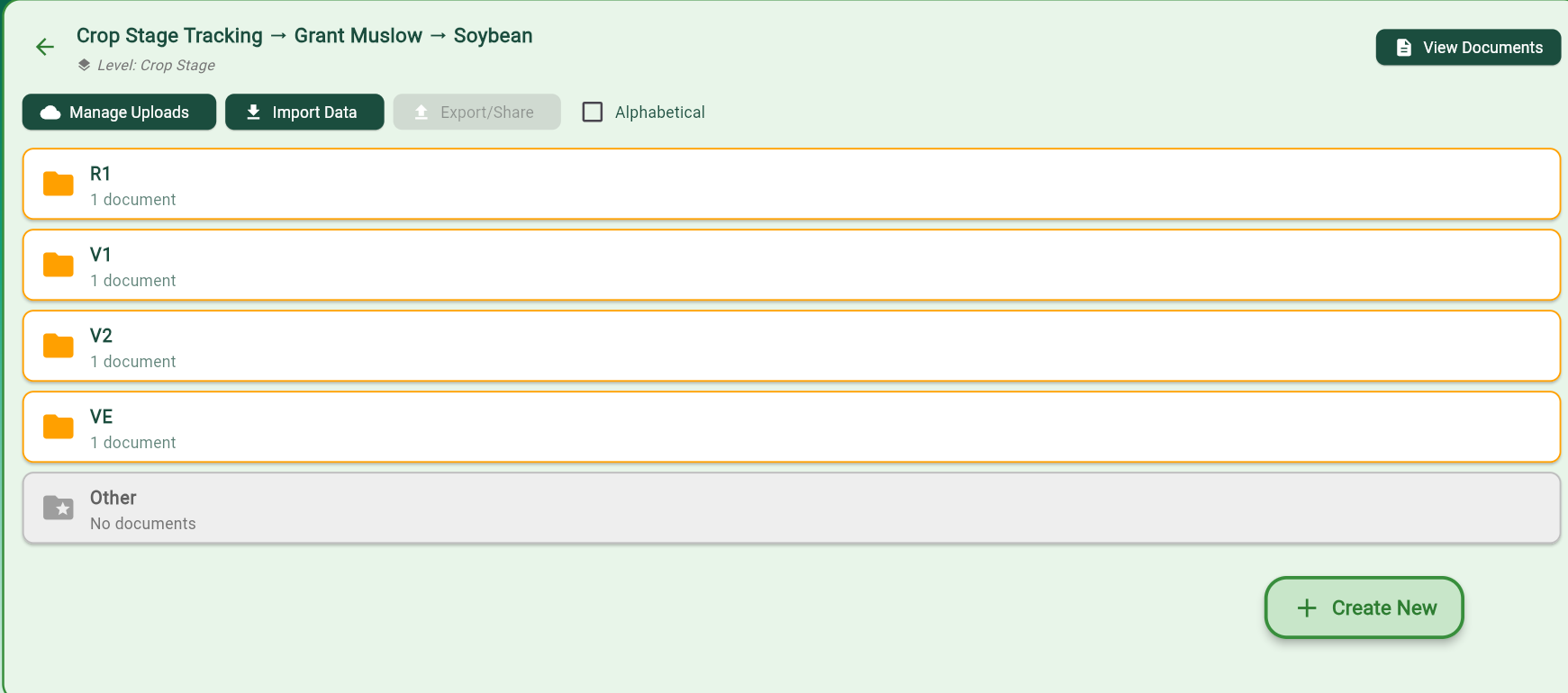
Simply click on a folder tree and start looking through the folder structure. Folder trees have different levels. If a level is a tag type like grower or farm, you will see all of the grower or farm tags as folders. Click on a folder to continue going through the tree, or click the 'View Documents' button at the middle right to see all of the documents that match the current folder path.
Document Snapshots
Documents, when saved, take a 'snapshot' of the current field tags and save them directly to the document. That means, if you change the underlying field tags (like the crop stage from V1 to V2), the document will still appear in the V1 folder if it was saved when the field was in V1 stage. This allows you to compare documents taken at different stages in a field's lifecycle without you having to do anything special.