FarmMind Tutorials
Create a Document
FarmMind currently supports 3 document types: Field Notes, Recommendations, and Pesticide Application Records, with more coming soon. To get started, let's create our first recommendation by pressing 'Create Recommendation', or by clicking on the field and selecting 'Add document' and then 'Create Recommendation'. By doing this, the recommendation will reference this field (and more fields, if you'd like).
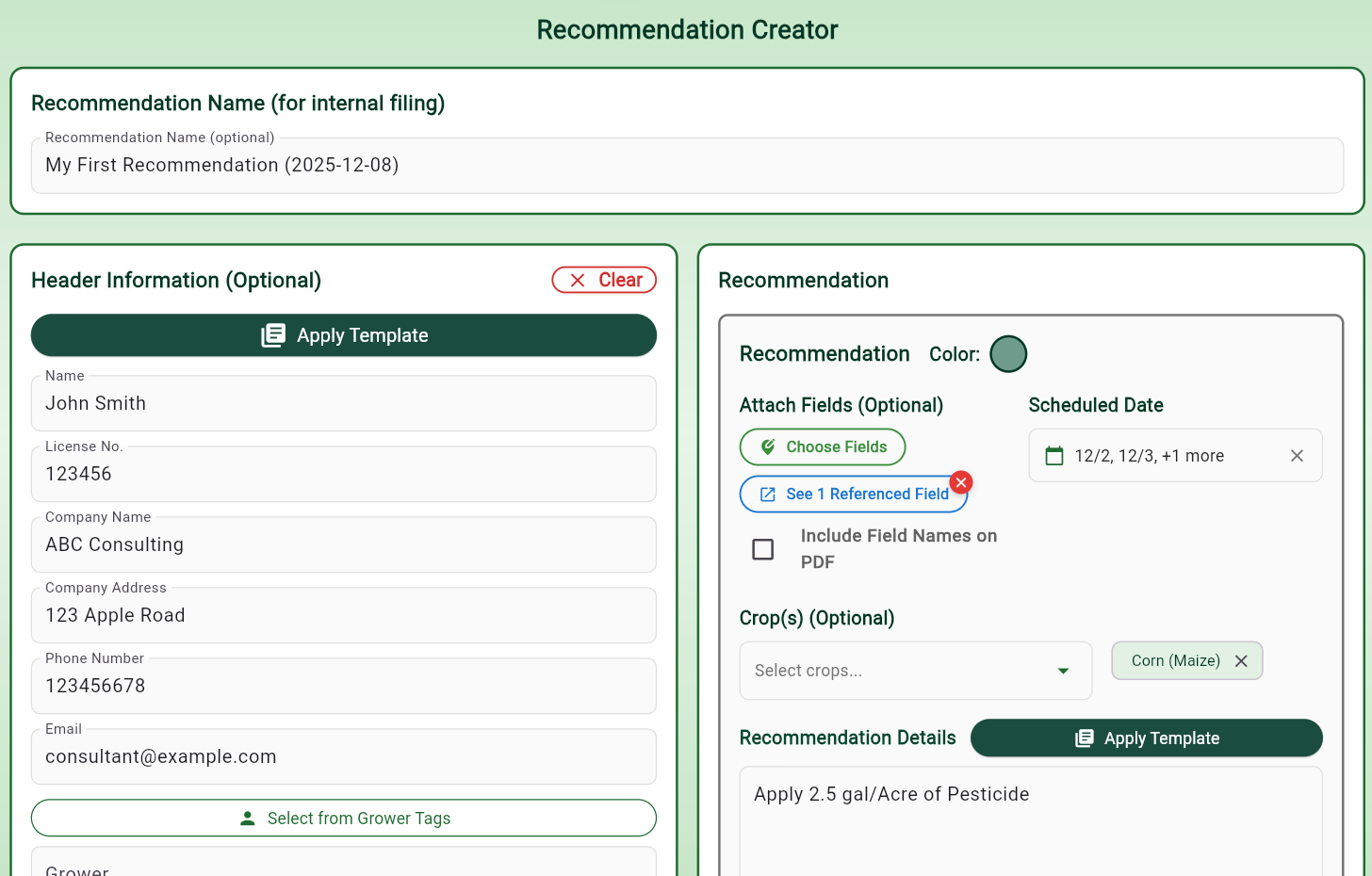
In the recommendation creator portal, the first thing that you will see is the recommendation name and header information. First, fill out the recommendation name so that you can find it later. Next, we recommend that you press the 'Apply Template' button to create a header template that will be automatically applied to all recommendations in the future, so you never have to put in your header information again.
Next, scroll down to the actual recommendation (on desktop, it will be on the right of the screen). Here, you will see a scheduled date, fields to choose from (if you created from the map, one or more fields will be automatically selected). The Recommendation Details is where you can put your actual recommendation. If you give frequent, repeated recommendations, you can create a template by pressing the 'Apply Template' button so you never have to write out a repeat recommendation again. There is a checkbox for a 'Recommendation Map', where you can show the fields that are actually applied to your client, if checked. Now, scroll to the bottom and you can optionally add your signature to the recommendation. You only have to create the signature once, and then you can just press that checkbox to add it for future recommendations. Now, you can preview, export, or save the recommendation for later. Export is a printable PDF that you can send to your clients. For white labeling options, please contact us.