
FarmMind Tutorials
Creating Recommendations
Creating recommendations in FarmMind is intuitive and fast. Whether you're a first-time user or creating your hundredth recommendation, the process is streamlined and efficient.
How to Start
There are two ways to create a recommendation:
Select multiple fields using select mode, press 'Create Document', then select 'Recommendation'.
Press the button in the lower right corner to create a new recommendation.
Step 1: Create a Header Template
We recommend that you start by pressing 'Apply Template' to create a header template. This will appear on all your PDF exports and saves you from re-entering information each time. Include:
- Your name
- License number
- Company name and address
- Phone number and email
(Note: None of this information is required. Include only what you need.) Click 'Save Template', and it will automatically apply to all future recommendations. You can create multiple header templates if needed.
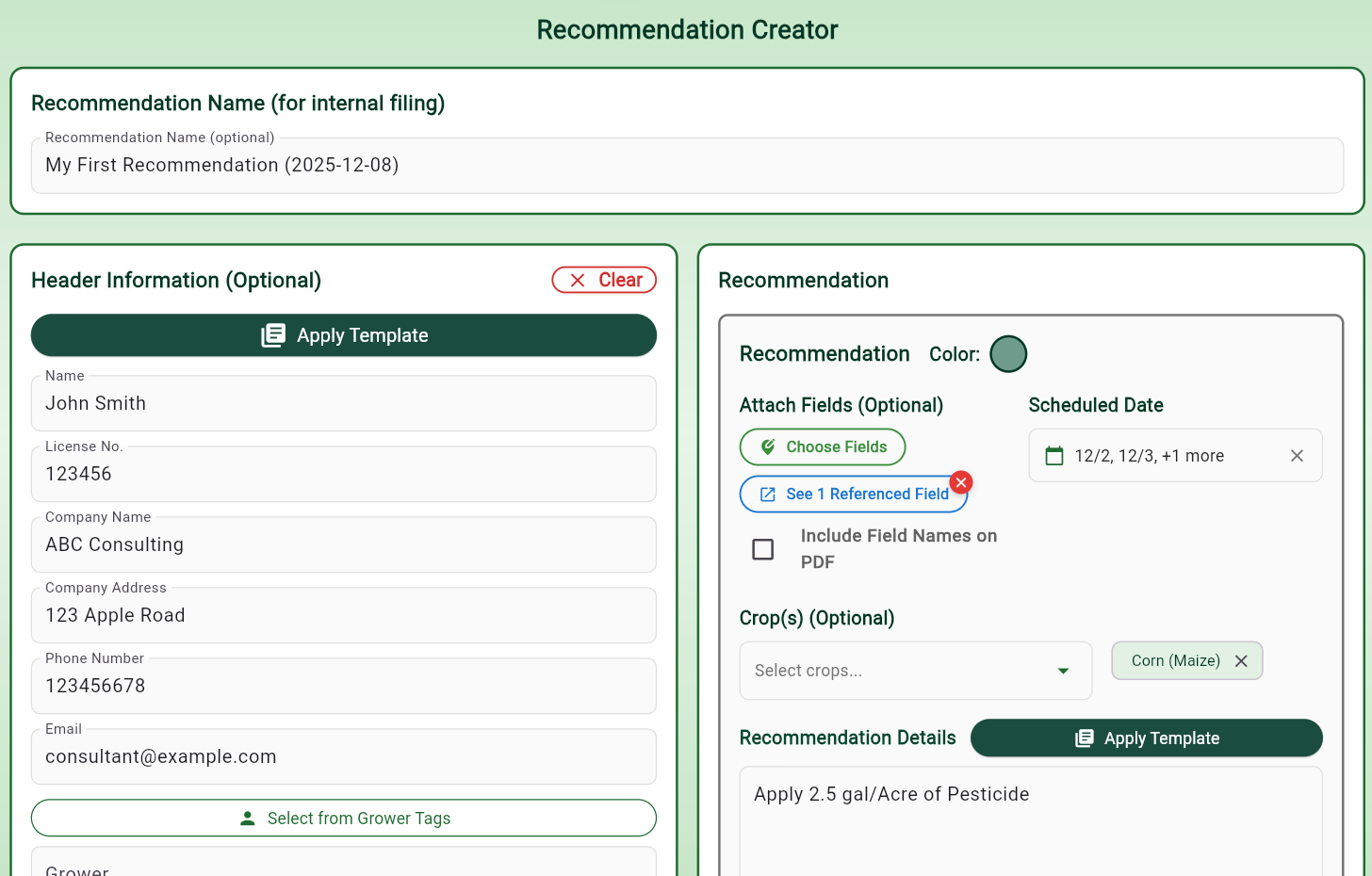
Step 2: Add Recommendation Details
Now add the actual recommendation content:
- Recommendation Color: Choose a color that will appear on the map
- Referenced Fields: Select which fields this applies to
- Scheduled Date: When should this be implemented?
- Crops: Auto-populated based on referenced fields
- Recommendation Content: Your detailed guidance text
If you give the same recommendations commonly, you can apply content templates so you don't have to type them out each time.
Step 3: Add Product Information
Use our Rate Lookup Tool to quickly find pesticide, herbicide, and fungicide rates for any product. This ensures your recommendations include accurate application rates.
Step 4: Optional Enhancements
Add a recommendation map (optional):
- Edit map overlays
- Change background colors of fields
- Adjust map size
Step 5: Add Your Signature
Optionally, add your signature to the bottom of the PDF. If you haven't created a signature yet, click the 'Edit Signature' button. Once created, you can reuse it on all future recommendations.
Step 6: Finalize
You have three options to finalize your recommendation:
- Preview: See a preview of your PDF before saving
- Save: Save the recommendation for later
- Export: Export immediately as a PDF for your client