FarmMind Tutorials
Multi-Select and Batch Updates
Multi-Select mode is one of the most important tools for those who are managing tens, hundreds, or tens of thousands of fields! It enables you to update many fields at once by highlighting and tapping on different fields.
Select Mode
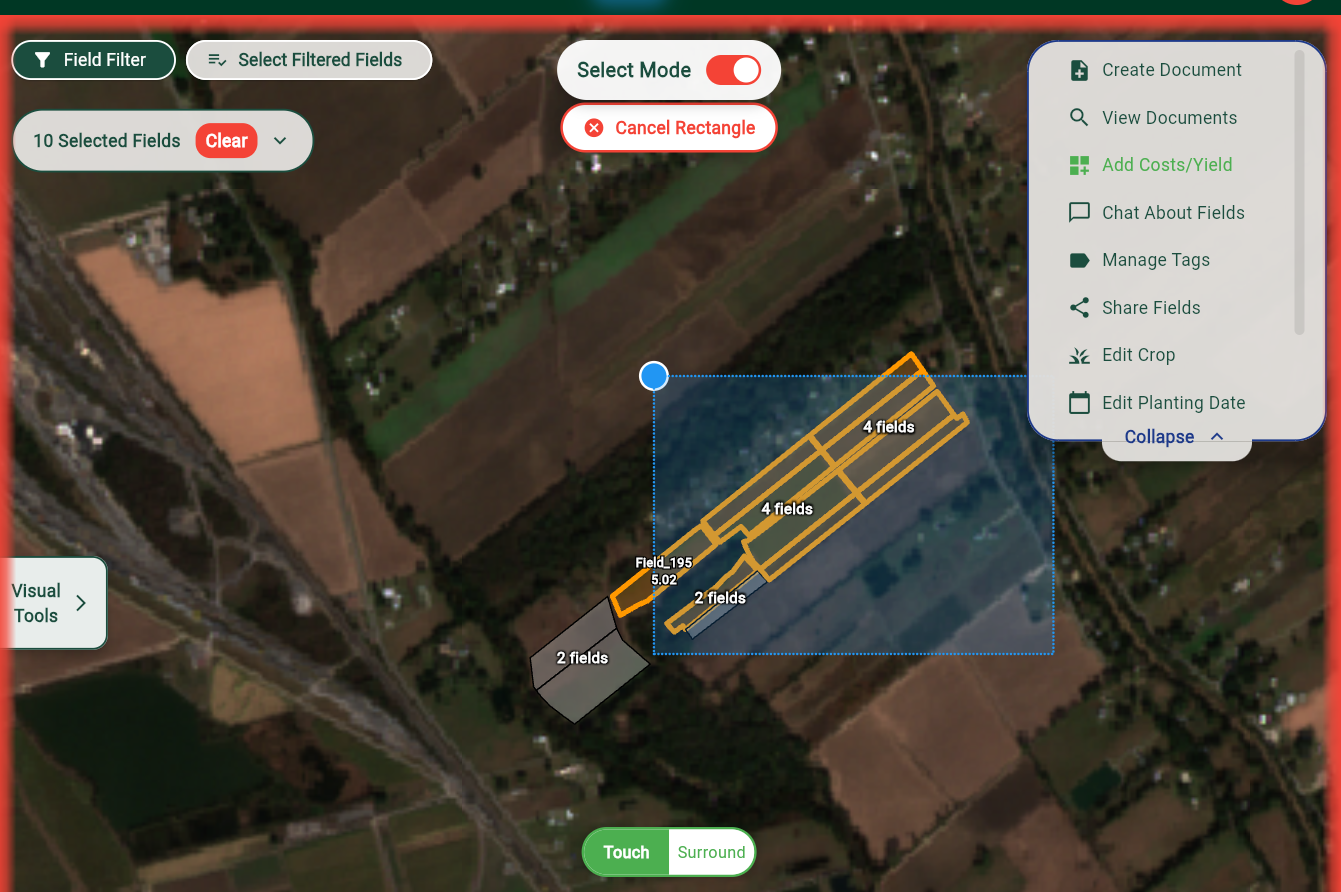
The Select Mode toggle is at the top. Once you toggle, it will bring you to a mode where you can select multiple fields. On Desktop, click once and hover somewhere different to create a box that will select all fields that it touches. Then, click again to select all of the fields that it touches.
If you would like to change it such that the box has to completely surround the field to select it, toggle that at the bottom. You can also select multiple fields by just tapping on the field, or you can do the same to deselect it.
You can also filter fields in this mode, and select all of your filtered fields. For instance, if you'd like to change all of your sugarcane fields at once, then you can filter crop by sugarcane and then press the 'Select Filtered Fields' button at the top left.
Actions on Selected Fields
Now that you've selected fields, you can perform different actions via panel at the top right:
- Creating a document will make that document reference all of those fields.
- Adding cost/yield information will also reference all of those fields and automatically calculate the total acreage of all the fields selected.
- Chat about fields also references all of those fields.
- Share all fields at once with your organization.
- Edit Crop and Edit Planting Date also affect all fields at once.
Managing Tags for Multiple Fields
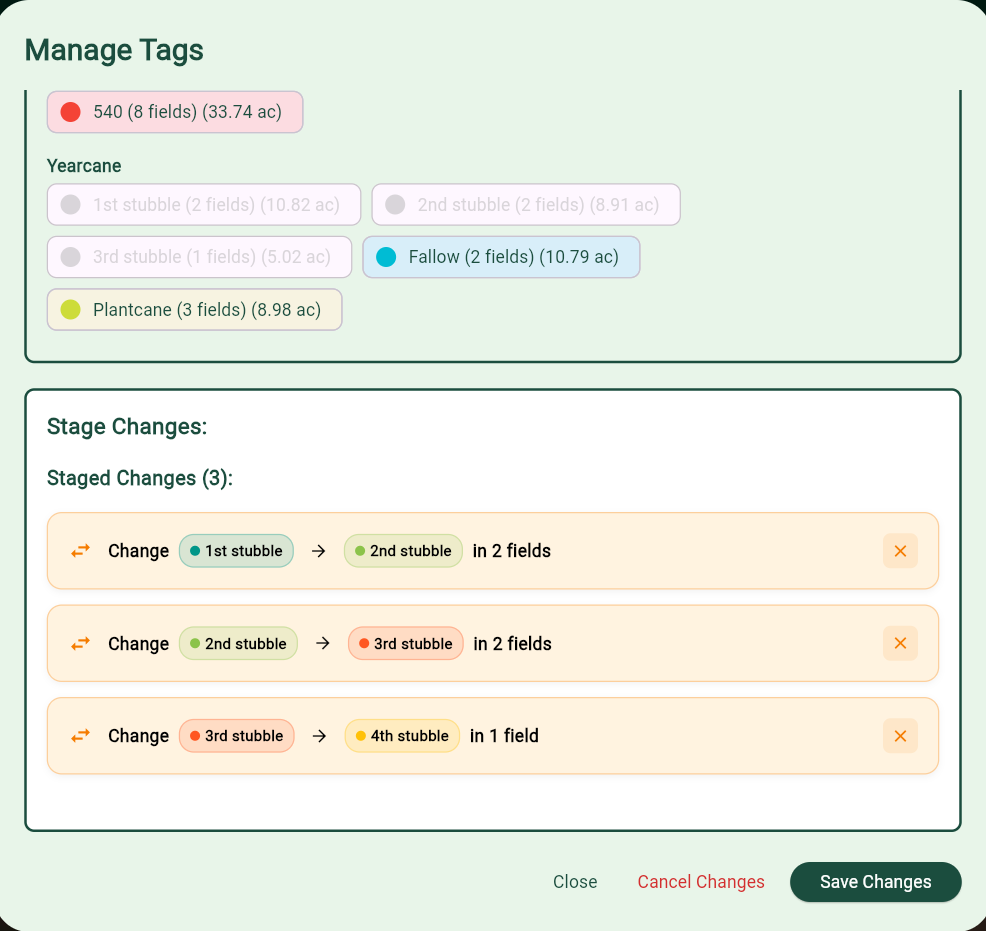
When you click on 'Manage Tags' for the selected fields, a dialog will pop up first showing all of the tags common to that group of fields. If you'd like to see all tags for all fields, click the 'All' toggle.
To change or remove an existing tag, click on the tag and select 'delete' or 'change'. You can also add tags to all selected fields by pressing the button at the top of the dialog.
You can perform multiple operations to the tags for the selected fields at once, and they will all be applied at the exact same time. You can see the changes under 'Stage Changes' at the bottom of the dialog.
This differentiates our system from other software platforms where you have to carefully apply your changes one by one in reverse so that tags don't conflict with each other. For instance, suppose some of your selected fields have tags V1, V2, and V3, and you wanted to increment each of these (V1→V2, V2→V3, V3→V4). You can do that straight in the manage tags dialog in one go! Just stage all of the changes at once and you'll be set.