
FarmMind Tutorials
Exporting
FarmMind supports exporting maps that allow you to draw, take notes, color, and highlight as you please to save as a PDF that you can show your clients. To enter export mode, select the 'export' tool in the top right and click and drag the area that you want to export. This will bring you to our 'Export Mode' page, where you can markup your map and get ready for export.
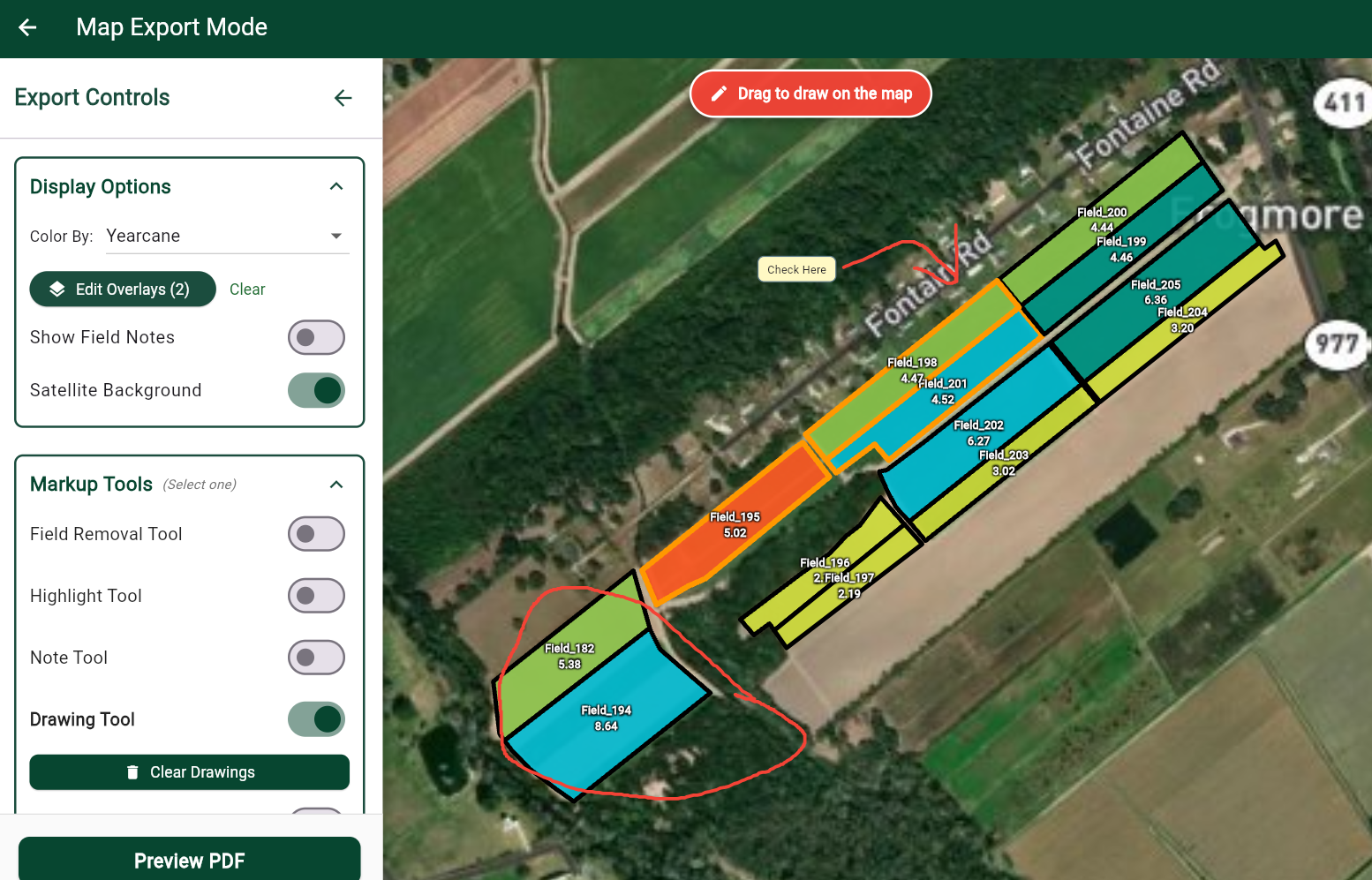
Export Mode
In export mode, you can markup your page to get ready to send it to your clients. All of the controls will be on the left sidebar. You can edit how the fields are colored, what overlays are being shown, and you can show the field notes that have been taken in that area.
Markup Tools
Markup tools allow you to TEMPORARILY edit the map to get ready for export—it does not change permanently. You can draw on the map using the drawing tool, create temporary notes directly on the map, and highlight fields of interest. Whenever you're ready to export, click the 'Preview PDF' button at the bottom right.
PDF Previewer
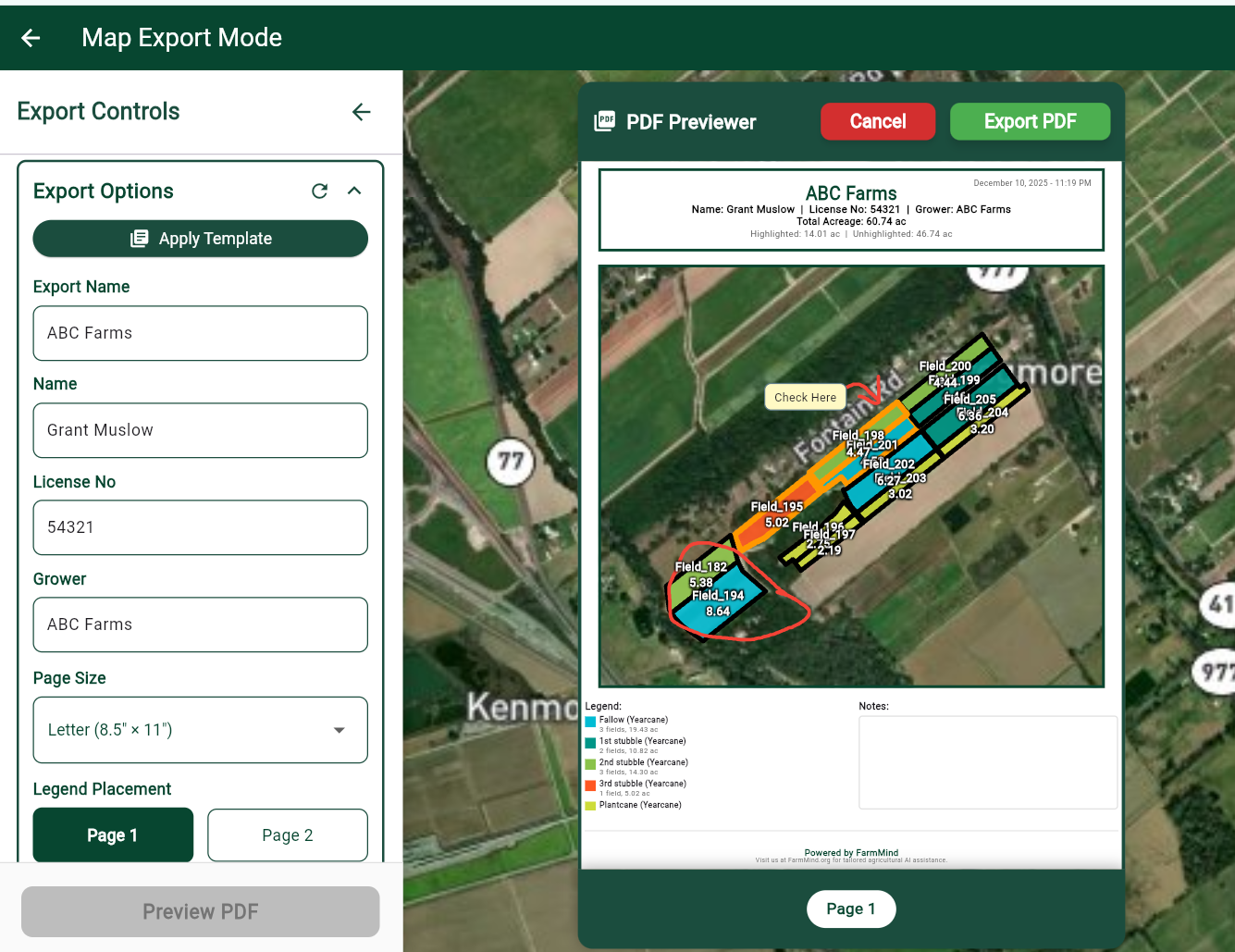
To assist you to see what the PDF will actually look like, FarmMind offers our PDF previewer for map exports. In addition, you can add your official information to the document, such as:
- • Export Name
- • Your name
- • Your license number
- • The targeted grower
- • The type of page size
For white-labeling options, please contact us. To avoid repeating information input, click on 'Apply Template' to create a template that can be applied in later exports. Finally, whenever you're ready, click the 'Export PDF' button at the top to save the PDF and instantly send it to your clients.