
FarmMind Tutorials
Drawing Fields
To draw a field, press the 'Draw Field' button in the top right hand corner, which will be glowing orange if you do not have any fields yet. You will enter 'Field Drawing Mode', and you can click at different points to draw out your field. On mobile, you can tap on your phone or tablet and create different points for your field, or you can press and hold to see where the boundaries will be. On mobile, use two fingers to move the map. The drawing tools will appear in the panel in the top right, where you can add holes in your field, undo points, and cancel a drawing. On desktop, we also allow you to draw circular fields using our circle tool.
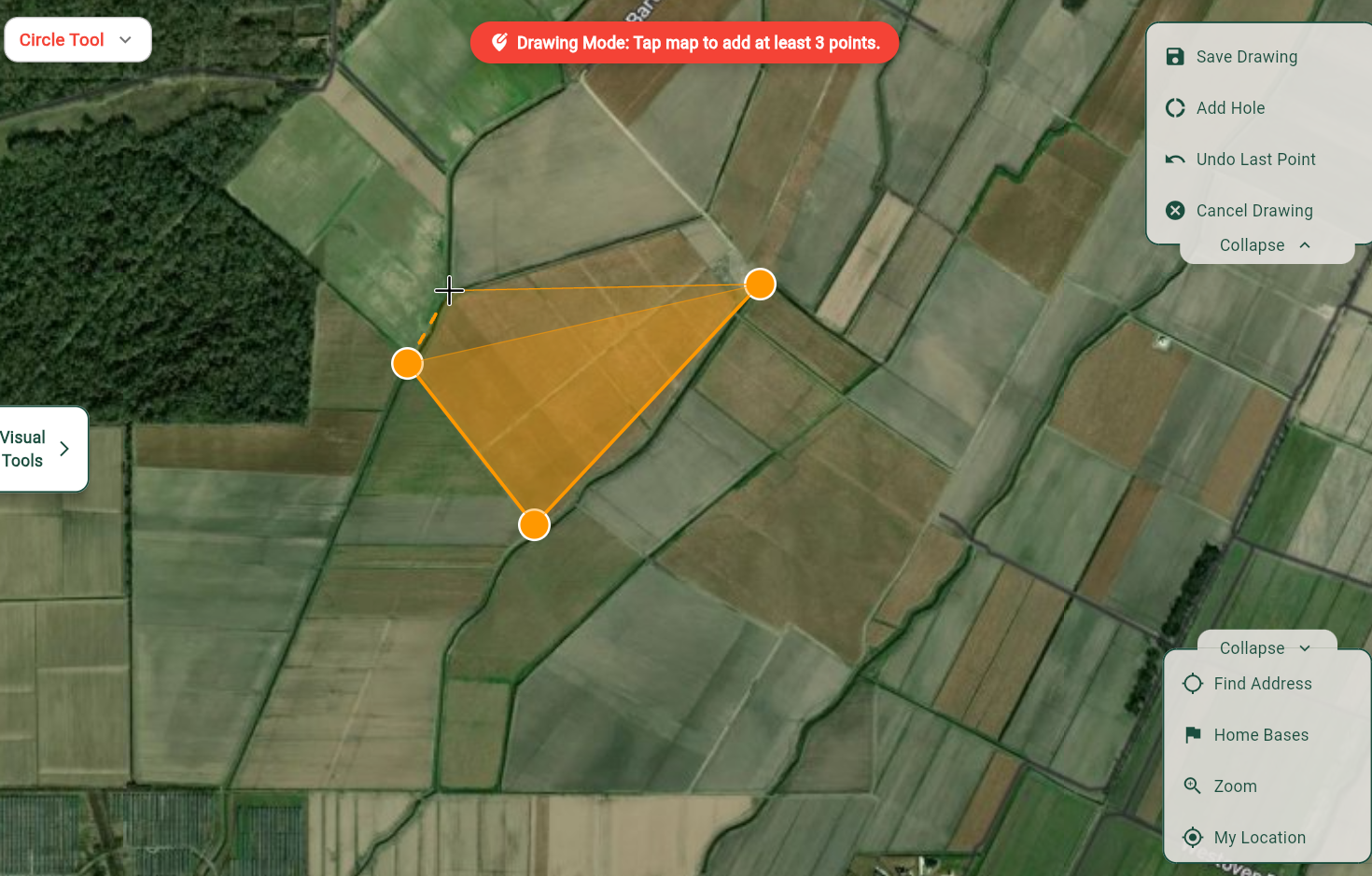
Whenever you are finished, press 'Save Drawing' in the top right hand corner. Now, you can input information about your field, such as the name, crop, planting date, and tags.
What are Tags?
Tags are properties that you are able to add to fields, such as grower, farm, variety, crop stage, soil type, and anything else that would be important for classification of fields. We provide default tags and tag types, but you can also create your own types for whatever your use case is. Some users create a stubble tag type and have tags of '1st stubble', '2nd stubble', etc for tracking of different stubble types for fields. Others use tags to organize fields by priority level to tell scouts where to go.
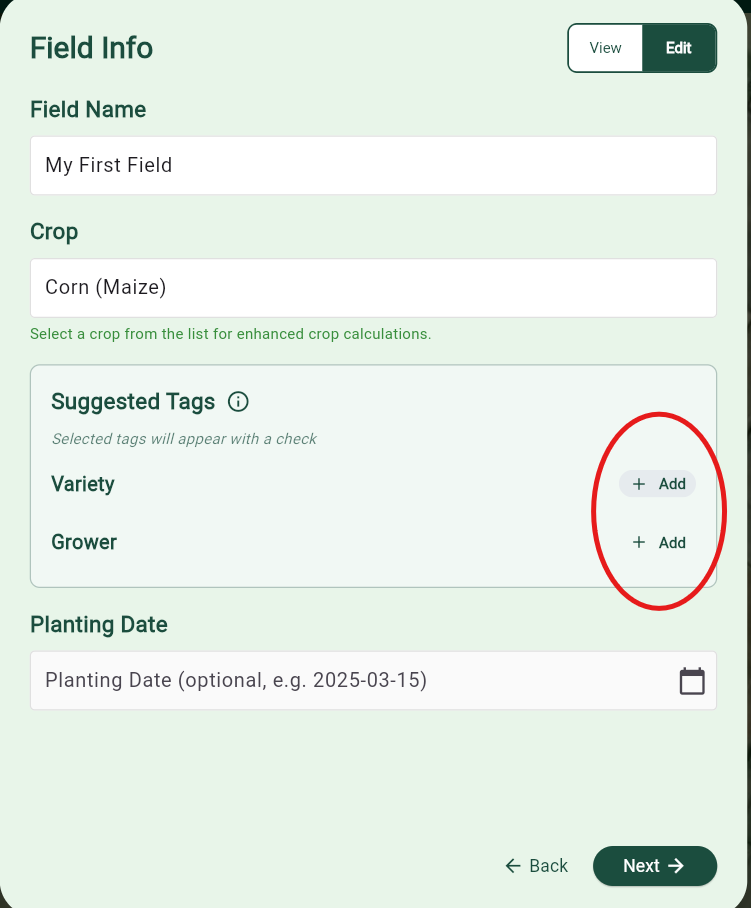
To start, we suggest that you add a variety and grower tag to the field. Add the variety name or the grower name as the tag name, and select a color to represent fields that have this tag. You can color fields by any tag type using the map visual tools. Press 'Next' at the bottom to continue.
Here, you will see a bunch of other tags that you can optionally add to this field. You can create a new tag or tag type by pressing the 'Create New Tag' button. To create a new tag, select the tag type dropdown and select 'custom', and put in the new tag type you would like to create.